
Google Analytics Automations for monday.com
This documentation explains how to set up and use the Google Analytics Automations app with monday.com, including prerequisites, annotations, events, and token management.
How to Use
Prerequisites
To activate the full capabilities of the integration:
- The monday.com user must have an Editor role in the Google Analytics property (or properties) used in automations.
- For automatic events, create a Measurement Protocol API secret in your Google Analytics data stream.
After installing the app, confirm that it has been added to the desired workspace/board.
If not, go to Manage installed apps, select Google Analytics Automations, and click Use App. You will be prompted to select a workspace and board.
ℹ️ Info
When you create your first automation, you must sign in using your Google account that has the Editor role in the connected Google Analytics property.
Annotations
Annotations let you automatically create notes in Google Analytics based on changes in your monday.com boards.
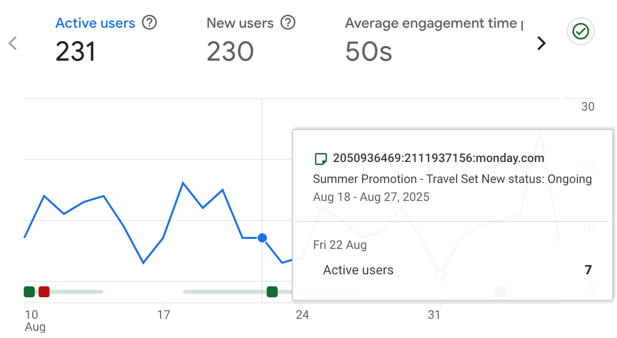
Creating Annotations
- Go to your board view.
- Click Integrate.
- Search for automations belonging to the installed app. Use keywords such as:
ga,google analytics,annotations,events.
All annotation automations require the following inputs:
- Color
- Date
- Title (auto-generated from board and item ID)
- Description (auto-generated with item name and new status label)
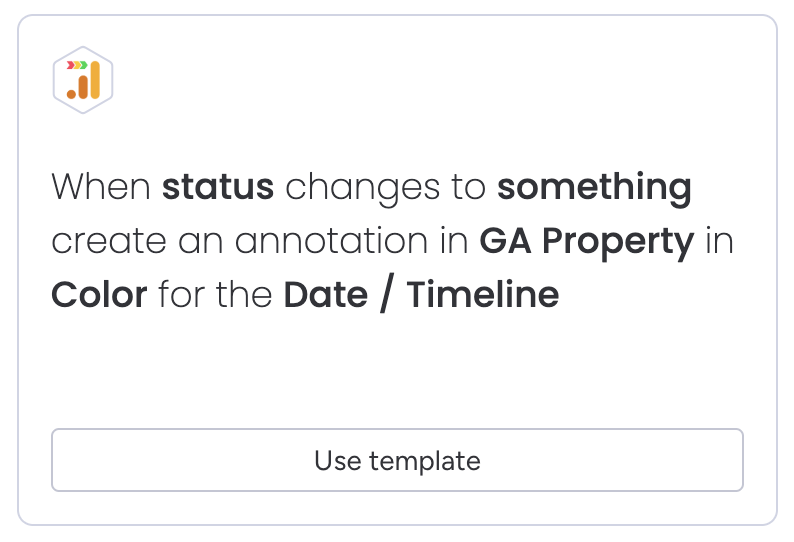
You must choose the color and date during automation creation.
Available Annotation Automations
GA Annotation on Status Change and Date
- Triggers when a status changes.
- Best used with Date or Timeline column types.
- Displays in Google Analytics for a specific day or date range.
Example: Marketing Campaign → Status: Ongoing → Sept 1 – Sept 7, YYYY
GA Annotation on Status Change (Current Date)
- Triggers when a status changes.
- The current date is automatically assigned.
- Requires you to set a Timezone during automation setup for accurate reporting.
To prevent spam in the Google Analytics property, unintended batched status changes are limited to a maximum of 5 annotations per minute.
GA Annotation with Button (Current or Date-Based)
- Triggers when a Button column is clicked.
- You must add a Button column to your board and select it in automation settings.
Google Analytics Events
This automation sends events from your monday.com board to a Google Analytics property when a status changes. Additional capabilities are coming soon.
Creating an Event Template
- Navigate to your board.
- Add a new view: Apps > Google Analytics Manager.
- The default view lists created event templates for the board.
- Create a new template — choose from predefined Web or App templates.
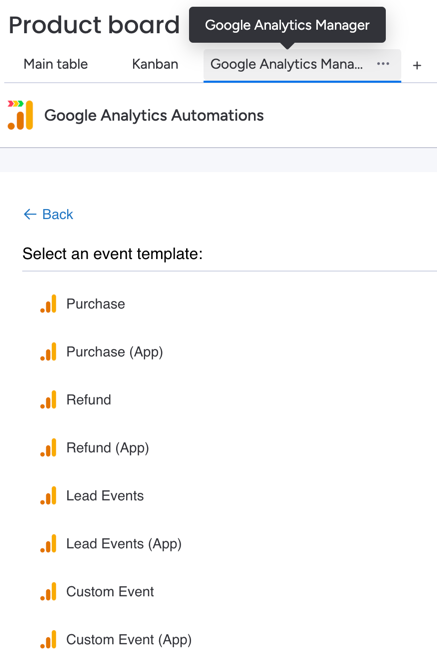
You can insert a fixed custom value or link the template to a specific board column.
Requirements
- Web-stream events: require a Client ID (stored in your board or created as a pseudo-anonymous ID).
- Ecommerce events (purchase, refund): require a Transaction ID (order ID).
- App templates: require an App Instance ID to assign events to a user/device in the GA app stream.
Once the template is defined:
- Create an automation.
- Choose the template, status trigger, GA property stream, and your Measurement Protocol API secret.
- Ensure you have access to the desired GA properties.
Debug events
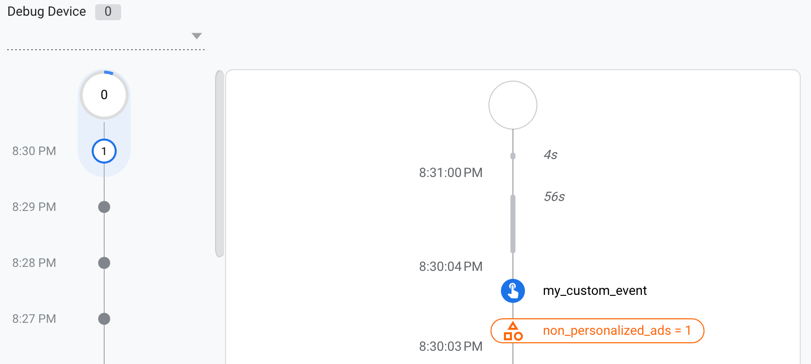
All templates contain a debug property which can be utilized for debugging the events incoming in Google Analytics property.
To see events in the debug view of the GA, set the field in the template to 1. Then, make a change on the board to trigger the automation. You should see a debug event appearing in the Google Analytics debug view as well as real-time dashboards.
Authorization
A single Admin user must authorize the app for integration between Google account and monday.com account.
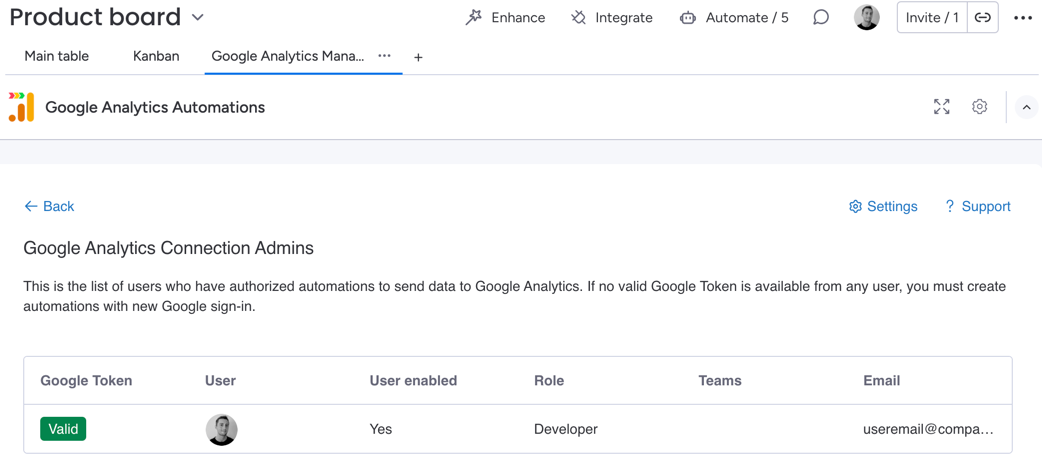
User Token Status (Settings)
When you authenticate with your Google account:
- Your token status is stored in monday.com storage.
- View tokens in Google Analytics Manager > Settings.
- Automations always use the latest active token.
If no valid tokens are found:
- Automations will fail.
- A GA user must create a new automation, prompting the Google sign-in flow.
- Once authenticated, all existing automations will resume functioning.
ℹ️ Info
If you require specific triggering rules or additional features, please submit a request via the support form.