
Bulk Delete Unused GTM Variables in Seconds
Old containers collect variables nobody uses. GTM can delete variables in bulk, but cross-checking each unused variable one by one takes forever. Here is how to delete all unused variables in 10 to 20 seconds, directly in the GTM interface and without external tools or API.
Before you start
Deleting variables only changes your workspace. Nothing goes live until you create a version and publish it. Still, export the container first (Admin > Export Container), so you have something to go back to.
Step 1 - select the variables and click Delete
Open Variables, select the whole list of variables and click Delete. A panel with the referenced variables is shown, and they are marked with a warning icon.
Step 2 - run the script in the browser console
Open the browser developer console (F12, or Ctrl + Shift + J / Cmd + Option + J in Chrome), paste the script and press Enter.
(function() {
    var varRows = document.querySelectorAll('.sheet-content.sheet-white.gtm-picker .gtm-picker__row');
    var withError = [];
    varRows.forEach(row => {
        if (row.querySelector('.icon-warning')) {
            var name = row.querySelector('a');
            withError.push(name.innerText.trim());
        }
    });
    var userVars = document.querySelectorAll('.gtm-multiselect-table tbody [gtm-table-row]');
    userVars.forEach(row => {
        var name = row.querySelector('a').innerText.trim();
        if (withError.includes(name)) {
            row.click();
        }
    });
})();
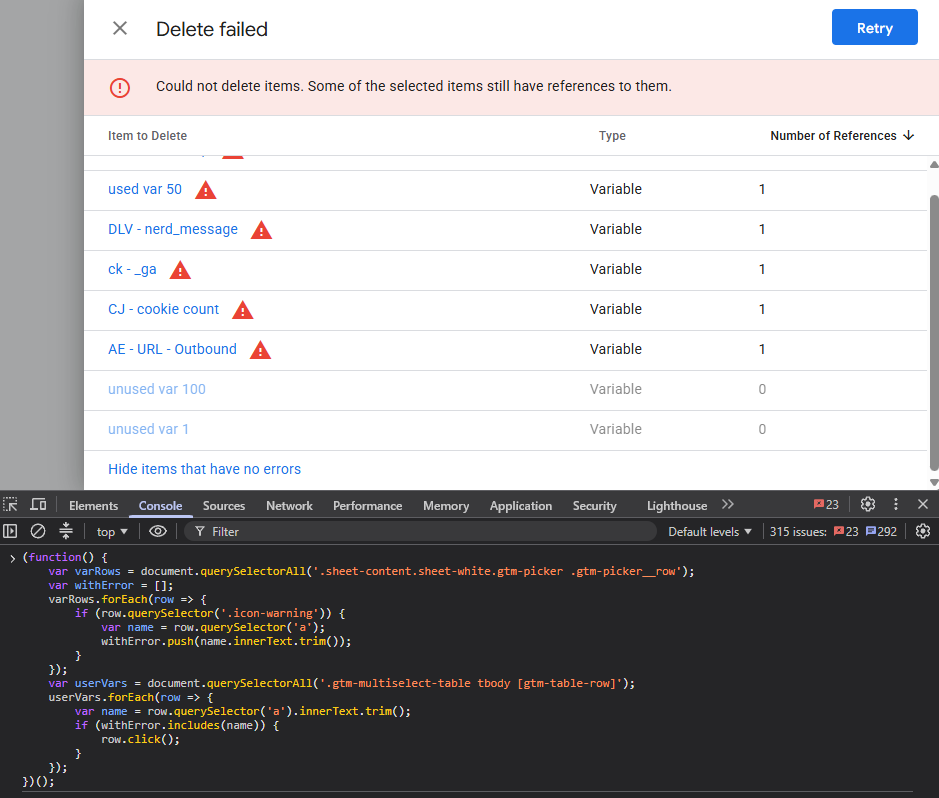
The script does three things:
- It reads the names of the rows in the panel that have a warning icon. Those are the variables in use.
- It looks for the same names in the variables table behind the panel.
- It clicks those rows, which unchecks them.
It deletes nothing yet. It only changes which rows are checked, and you still confirm the deletion yourself.
Step 3 - close the panel and click Delete again
The panel now reflects the new selection: the “unreferenced” variables are no longer in it.
Step 4 - repeat until only unused variables are checked
If you deleted all variables successfully, no more action left. However, you may get confused here for a second.
You still may get to the panel with the reference warning like in the STEP 1. The list of the selected variables for deletion, hides variables without warning and with “0 references” in the bottom of the panel.

Turns out, those are only variables that are unused in triggers or tags. Some of them can still be referenced in other variables, which also may be used elsewhere.
You cannot delete a variable until you get rid of the reference. At this stage, just repeat the STEP 2, close the panel. Do this until all unused variables are selected and successfully deleted.
If this helped you, let me and others know somewhere on social media tagging #gtmutility 🚀
Where GTM Utility fits
➡️ Before you delete in bulk, you may want to see what is actually unused. GTM Utility draws the container as a flowchart and shows unused or paused components at a glance. It reads the active workspace, so you can check the result of the cleanup before you publish.
📅 You can also schedule publishing of your clean workspace.